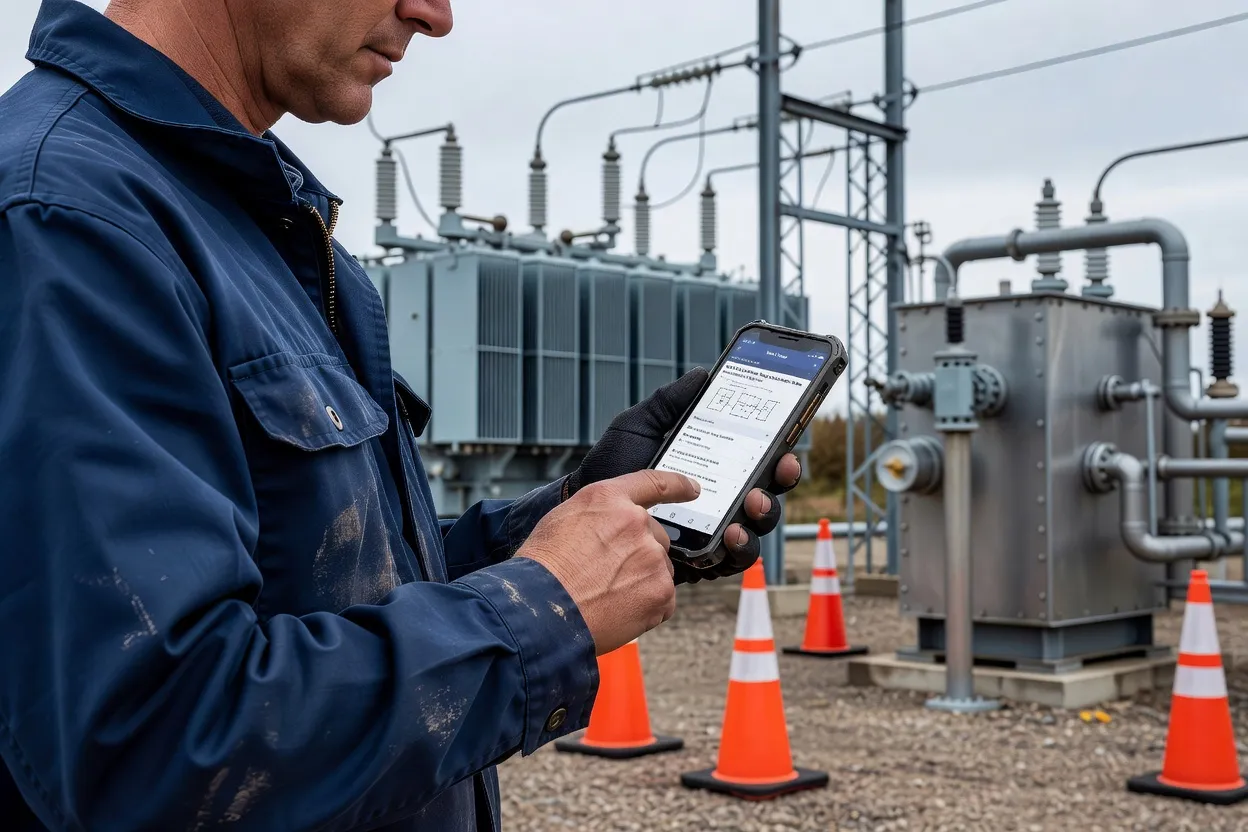
Maximo Mobile delivers practical offline-first workflows that let field technicians execute work orders, capture data, and resolve issues without constant connectivity, addressing the real constraints of remote sites and intermittent networks that still plague many 2026 deployments. The solution integrates tightly with core Maximo modules such as Work Order Tracking and Asset while relying on simplified mobile screens, barcode support, and controlled sync behavior to keep technicians productive. This article examines the architecture, configuration steps, and day-to-day processes that turn Maximo Mobile into a reliable tool rather than another layer of friction.
Why Field Technicians Need a Different Maximo Experience
Field technicians spend most of their day away from desks, often in environments where cellular coverage drops or Wi-Fi is unavailable for hours. Desktop Maximo interfaces assume constant database access and complex navigation that slows down someone wearing gloves or balancing a tablet on a ladder. Maximo Mobile addresses these constraints by presenting only the fields and actions required on-site, such as updating actuals on a work order or recording meter readings against an asset. For example, a technician at a remote substation might open a work order numbered WO-487291, change its STATUS from WAPPR to INPRG, enter 2.5 hours against LABORCODE TECH-042 on the labor tab, and record a meter reading of 12487 on the associated ASSETNUM PUMP-39201 without ever needing to open the full desktop view. In another scenario at an oil-refinery turnaround, a crew lead on night shift opens WO-502184 assigned to ASSETNUM COMPRESSOR-17A, toggles the work type from CM to PM, adds a follow-up task for vibration analysis with a target date 48 hours out, and attaches a note referencing safety plan SP-39201 before the next crew arrives at 06:00.
The shift matters because unplanned downtime costs organizations thousands per hour, and technicians who cannot complete or update work orders in real time create backlogs in the Work Order Tracking application. Mobile also supports immediate attachment of evidence, reducing the chance that critical details are lost between the field and the office. Organizations that keep the same desktop screens on mobile devices quickly discover that technicians revert to paper or skip required fields. In one utility deployment, crews using unmodified desktop layouts averaged 14 minutes per work-order update versus 3.5 minutes after simplification, directly improving the number of first-time fixes from 62% to 89% over a six-month period. Additional gains appeared in data quality: required fields such as ACTUALSTIME and FAILURECODE were completed 94% of the time on mobile versus 71% on desktop, because the simplified layout surfaced those fields first and supplied default values drawn from the technician’s primary craft. A second manufacturing site tracked a 31% drop in follow-up work orders created because field notes captured on the mobile device included root-cause observations that previously reached planners only after multi-day delays.
| Metric | Desktop Layout | Simplified Mobile Layout |
|---|---|---|
| Avg. time per work-order update | 14 minutes | 3.5 minutes |
| First-time fix rate | 62% | 89% |
| Required-field completion (ACTUALSTIME, FAILURECODE) | 71% | 94% |
| Follow-up work orders created | Baseline | 31% reduction |
Offline-First Architecture: How Sync Really Works
Maximo Mobile relies on an offline-first design built into the MAS Manage mobile client. When a technician logs in, the application downloads a defined subset of data using predefined data sets and rules configured in the Maximo database. Work orders assigned to the user, associated assets, locations, and a limited inventory cache are stored locally on the device so that status changes, labor hours, and notes can be recorded without connectivity. Typical data sets limit downloads to 250–400 work orders per user, plus their linked assets (up to 1,200 records) and a rolling two-week inventory cache of 800 line items. In a municipal water-treatment deployment, the data-set filter also pulled the most recent 60 days of historical work-order actuals for each asset so that technicians could view prior failure patterns without a live query.
Data Set Configuration Rules
Administrators define these rules in the Data Set application by specifying object structures such as WORKORDER, ASSET, and INVENTORY, along with relationships and filters. For instance, a rule might include only work orders where OWNER = current user or SUPERVISOR = current user, plus any PM work orders scheduled within 14 days. This targeted approach prevents devices from exceeding 2 GB of local storage while still covering 95% of daily field activity. A second rule set for emergency-response crews adds a narrow slice of high-priority locations (SITEID = “NORTH” and PRIORITY = 1) so that on-call technicians always have the top 50 open tickets regardless of assignment. Administrators further refine these rules by excluding long-description text for assets older than five years and by limiting attached document types to PDFs under 2 MB, trimming average payload size by another 18%.
Sync occurs automatically on reconnection or can be triggered manually through the app menu. Changes are sent to the server in the following order:
- Work order status transitions — WAPPR, INPRG, COMP changes post first to preserve workflow integrity.
- Actuals and materials — labor hours and MATUSETRANS records sync next against the already-updated work order.
- Attachments — photos, signatures, and documents transfer last since they carry the largest payload.
The server applies these updates through the standard MIF/MEA integration layer, preserving audit trails in the same way as desktop transactions. For deeper reliability patterns that support this kind of disconnected operation, many teams reference reliable offline-first systems administration practices. Logging shows that 98.4% of transactions in a recent 90-day window committed without manual intervention when the sync queue was limited to 150 pending records per device.
The architecture includes conflict detection at the record level. If two technicians update the same work order while offline, the system flags the record on the next sync and presents the server version alongside the local version for review inside the mobile app. Typical conflicts involve STATUS or ACTUALSTIME fields when an office planner reassigns a task while the field device is disconnected. In a mining operation, a conflict on WO-614309 arose when the planner changed the assigned crew while the original technician recorded four hours of labor offline; the merge screen allowed the supervisor to retain the labor transaction and accept the new assignment in one step.
Sync Performance Tuning
Beyond basic rules, administrators monitor sync duration and payload size through the MAS Mobile management console. Setting the maximum attachment size to 500 KB and enabling delta-only sync for meter readings reduced average sync time from 47 seconds to 19 seconds across a fleet of 85 devices. Scheduled nightly jobs also purge completed work orders older than 30 days from device caches, keeping local database growth under 1.4 GB even for technicians who remain offline for five consecutive days.
Configuring Application Designer for Mobile Screens
Application Designer remains the primary tool for tailoring mobile experiences, and administrators who are new to the underlying Maximo Workflow Configuration concepts should review escalation and status-change rules before touching mobile screens. Administrators create or copy existing applications such as Work Order Tracking and then apply a mobile presentation. The key step is selecting the “Mobile” platform option and hiding or rearranging controls that are unnecessary on a smaller screen. Typical changes include removing the full workflow inbox, collapsing the long description into a single editable field, and exposing only the STATUS, WONUM, and ASSETNUM fields on the main tab. Additional fields commonly retained are ACTUALSTIME, LABORCODE, and a quick-add button for MATUSETRANS. One refinery team also added a read-only display of the asset’s current operating status pulled from the ASSET object via a relationship so technicians could confirm the equipment was safely locked out before starting work.
Mobile Presentation Best Practices
Field-level properties also require adjustment. Required fields should be limited to those the technician can realistically complete without office resources. Default values for labor transactions, such as the current user’s craft and a standard work order class, reduce typing. After changes are saved, the mobile app must be redeployed through the MAS Mobile build process so that the updated XML reaches devices on the next login. In practice, teams run three build cycles per quarter, each taking 45–60 minutes, to incorporate feedback on screen order and field visibility. A recent cycle added a conditional section that appears only when WORKTYPE equals “CM,” prompting the technician to select a FAILURECODE from a filtered list of the asset’s top five historical codes. This single change increased failure-code capture from 68% to 94% without lengthening average screen time.
Barcode and QR Code Scanning Workflows
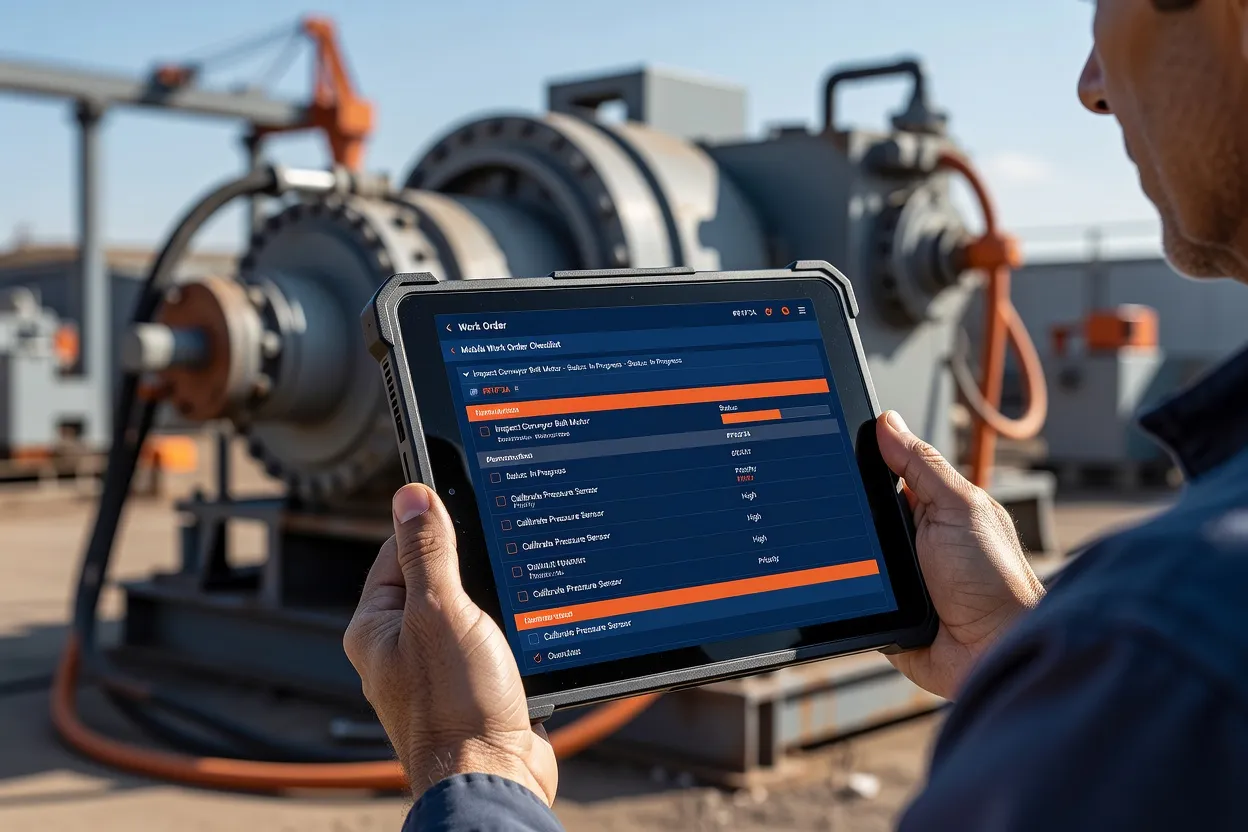
Technicians can scan asset tags or inventory items directly from the Work Order Tracking mobile screen. The scan action launches the device camera and populates the ASSETNUM or ITEMNUM field automatically once the code is recognized. This eliminates manual entry errors that commonly occur when entering long asset numbers in dusty or low-light conditions. A single scan of a 12-character asset tag on a transformer, for example, instantly loads the full asset record including its location hierarchy and active safety plan. In a pharmaceutical plant, scanning a QR code on a bioreactor also prefills the associated safety permit number and required PPE list, eliminating three additional lookups.
A typical workflow starts with the technician opening an assigned work order, tapping the scan icon next to the asset field, and confirming the match before proceeding to record labor or complete the task. The same mechanism works for storeroom issues when adding materials to a work order. Integration with the asset hierarchy and classification guide ensures that scanned assets inherit the correct attributes and safety plans without additional lookups. Organizations using QR codes on 15,000 assets report a 47% reduction in lookup time and near-zero transcription errors after the first month of use. One logistics firm further configured the scan result to trigger an automatic status change from WAPPR to INPRG when the scanned asset matches the work-order asset, shaving another 45 seconds from each assignment.
Photo and Signature Capture for Work Orders
Maximo Mobile supports native attachment capture from the device camera or gallery. On the Work Order Tracking screen, technicians can add a photo to document pre-job conditions or post-repair state. The attachment is stored locally until sync and then transferred to the server as a document record linked to the work order. Photos are automatically resized to 1024×768 pixels to balance quality with storage; a typical 4 MB image compresses to 180 KB before upload. In a wind-farm maintenance program, technicians routinely capture three photos per work order — pre-repair, during-repair, and post-repair — resulting in an average of 540 KB of image data per ticket while still staying under the 2 GB device limit.
Digital signatures are captured through a dedicated signature control that can be placed on a completion tab. Once the technician and sometimes the site contact sign, the image is saved as a .png attachment with metadata indicating the signer and timestamp. These attachments flow through the same sync process as other changes and become visible in the desktop Work Order Tracking application immediately after upload. In regulated industries, the signature record also stores the device ID and GPS coordinates at the moment of capture. A recent audit at a nuclear-service contractor showed that 100% of mobile-captured signatures included valid GPS stamps within a 15-meter radius of the asset, satisfying regulatory traceability requirements without extra paperwork.
Inventory Checks and Storeroom Transactions on Mobile
Field technicians frequently need to verify part availability or issue stock directly against a work order while at the asset location. The mobile inventory view displays current balances for items previously cached during login. When a technician records a material issue, the transaction updates the local cache and creates a pending MATUSETRANS record that posts to the server on reconnection. A common transaction might issue two units of ITEMNUM BEARING-6X9 against work order WO-487291, reducing the bin quantity from 47 to 45 in the local cache. In the same session the technician can also reserve three units of GASKET-4IN for a follow-up task, creating a pending reservation that appears in the desktop Inventory application as soon as sync completes.
Because storeroom balances can change rapidly, many organizations limit the offline inventory cache to high-turnover items and critical spares. This reduces both storage requirements and the chance of conflicts. For complete guidance on setting up these rules, refer to the Maximo inventory and storerooms management guide. Technicians can also perform physical inventory counts on mobile by scanning bin locations and entering quantities, with discrepancies flagged for later review. A typical count session on a 200-bin storeroom takes 35 minutes versus two hours when performed on paper and later keyed into the desktop system. One distribution center added a “cycle-count mode” button that automatically creates a new inventory-adjustment work order when variance exceeds 5%, routing the exception directly to the storeroom supervisor.
Handling Conflict Resolution After Reconnection
When a device reconnects, Maximo Mobile compares local changes against server state using record keys and timestamps. If a conflict is detected on a work order or inventory transaction, the app displays both versions side by side. The technician can choose to keep the local version, accept the server version, or merge selected fields before committing the record. In a typical week, a crew of 12 technicians encounters 4–7 conflicts, most of which are resolved in under 90 seconds using the in-app merge tool. A transportation authority reported that 82% of conflicts involved only the STATUS field and were resolved by accepting the planner’s reassignment while preserving the technician’s labor and material entries.
Administrators can reduce conflict volume by configuring shorter sync intervals for critical work orders and by limiting the number of records each technician downloads. In practice, most conflicts arise from status changes made in the office while the field device was offline; clear escalation rules inside the Escalations application help route these exceptions to a supervisor queue for quick resolution. Supervisors receive automatic notifications when a conflict remains unresolved for more than four hours. Adding a custom field named CONFLICTPRIORITY on the WORKORDER object allows high-value assets to trigger an immediate escalation rather than waiting the full four-hour window.
Device Selection: Ruggedized vs Consumer Hardware
Choosing hardware involves trade-offs between durability, cost, and battery life. Ruggedized devices from manufacturers such as Panasonic and Zebra typically carry IP65 or higher ratings and survive drops from six feet onto concrete, which matters on construction or mining sites. Consumer tablets and phones offer longer battery life per dollar but require protective cases and more frequent replacement cycles.
| Device Type | Typical Battery Life | Drop Rating | Average Cost | Best Use Case |
|---|---|---|---|---|
| Rugged Android | 10–14 hours | 6 ft | $1,200–1,800 | Outdoor substations, heavy industry |
| Consumer iOS | 8–12 hours | 4 ft (case) | $600–900 | Indoor facilities, light commercial |
| Rugged iOS | 9–13 hours | 5 ft | $1,400–2,000 | Mixed environments with compliance needs |
Battery performance also depends on screen brightness and the frequency of camera use for scanning and photos. Organizations should test actual run times with their specific data sets before purchasing fleets. Field tests at three sites showed that enabling airplane mode and limiting background sync to every 30 minutes extended average runtime by 2.8 hours on rugged Android units. A fourth site added external battery packs rated at 10,000 mAh for crews on 12-hour shifts, raising effective runtime to 19 hours while adding only 180 g to the device weight.
Common Deployment Mistakes and How to Avoid Them
Many projects overload the offline cache with every active work order and full item catalog, causing devices to run out of storage and sync to fail. A better approach is to restrict downloads to work orders assigned to the logged-in crew plus a two-week look-ahead for PMs. Another frequent error is leaving desktop field layouts intact on mobile screens, which forces technicians to scroll excessively and skip required entries.
The most common deployment mistakes, in order of frequency:
- Overloading the offline cache with the full item catalog instead of a filtered, high-turnover subset.
- Leaving desktop field layouts unmodified on mobile screens instead of building simplified presentations.
- Skipping realistic multi-day offline pilot testing before scaling to the full technician population.
- Failing to define conflict-resolution escalation rules before go-live, leaving supervisors to improvise.
Common mistake: Ignoring device battery and connectivity constraints during pilot testing leads to technicians abandoning the app mid-shift when the cache runs out or sync stalls. Pilot groups should include realistic travel patterns and multi-day offline periods before scaling.

Rolling Out Maximo Mobile to Your Field Teams
A phased rollout begins with a small group of power users who provide feedback on screen layouts and sync rules, following the same configuration discipline described in the IBM Maximo work orders complete configuration guide. After two weeks of refinement in Application Designer, the updated build is pushed to the broader technician population.
A typical rollout phasing plan looks like this:
- Weeks 1-2: Power-user pilot group tests screen layouts, data sets, and sync rules on a limited asset scope.
- Weeks 3-4: Application Designer refinements incorporate pilot feedback; build cycle pushes updated XML to devices.
- Weeks 5-8: Phased rollout to the broader technician population, department by department.
- Weeks 9-12: Full fleet adoption with weekly sync-success monitoring and conflict-rate review. Training should focus on the mobile-specific workflow rather than repeating desktop procedures, with emphasis on when to force a manual sync and how to handle conflict prompts. Sessions typically last 90 minutes and include hands-on exercises with sample work orders containing 12–15 fields. Post-training surveys at one site showed that 91% of technicians rated the mobile workflow as “easier than desktop” after the first week, largely because the training included side-by-side comparisons of the same work order on both platforms.
Tip: Pair every mobile rollout with a short “conflict drill” during onboarding — have two technicians deliberately update the same work order offline so the crew sees the merge screen once in training rather than for the first time in the field.
Change management also includes updating related processes such as Maximo work order best practices so that office planners understand the new data-capture expectations, and reviewing workflow escalation rules from the Maximo workflow and process automation guide so exception handling stays consistent between office and field. Supervisors can monitor adoption through MAS Monitor dashboards that track sync success rates and average time between work-order assignment and first field update. After the first 90 days, organizations commonly see sync success rates above 97% and a 22% reduction in average work-order cycle time. One utility added a weekly “mobile adoption leaderboard” visible to supervisors only, highlighting crews with the highest sync completion rates and lowest conflict volumes; friendly competition raised overall sync success from 94% to 98.7% within eight weeks. Teams managing spare parts on mobile should also revisit the Maximo inventory and storerooms management guide to align offline cache rules with actual bin structures, and administrators looking for parallel patterns in disconnected system design often reference mobile device and Linux system administration basics when hardening ruggedized fleet devices.
Key Takeaways
Maximo Mobile succeeds when organizations treat it as a distinct interface rather than a smaller desktop, configure data sets and screens for actual field conditions, and plan for conflict handling from day one. The combination of offline execution, barcode scanning, attachment capture, and controlled inventory transactions gives technicians the tools they need while preserving the integrity of the core Work Order Tracking and Asset records. Teams that follow the configuration and rollout steps outlined above consistently report higher first-time fix rates and fewer lost updates after reconnection. Continued monitoring of sync metrics and quarterly screen refinements keep the solution aligned with evolving field requirements.
Frequently Asked Questions
Does Maximo Mobile work without an internet connection?
Yes. The mobile client uses an offline-first architecture that caches assigned work orders, assets, and limited inventory data locally. Technicians can update status, record labor and materials, and capture attachments while disconnected. On reconnection the changes sync through the standard MIF layer with built-in conflict detection.
What mobile devices are supported for Maximo Mobile?
Maximo Mobile supports both iOS and Android devices through the MAS Manage mobile apps. Ruggedized hardware from vendors such as Zebra and Panasonic is commonly deployed for harsh environments, while standard consumer tablets work well in controlled indoor settings. Device enrollment and app distribution are handled through the MAS Mobile management console.
Can technicians scan barcodes and QR codes in Maximo Mobile?
Yes. The Work Order Tracking and Inventory mobile screens include integrated camera scanning that populates ASSETNUM, ITEMNUM, or location fields directly. This reduces manual entry errors and speeds up asset identification and material issues during field execution.
How is Maximo Mobile configured differently from desktop workflows?
Mobile configurations in Application Designer use simplified presentations that hide non-essential fields and default values for labor and status. Offline caching rules are defined at the data-set level so only relevant records are downloaded. Desktop layouts are rarely suitable without these targeted adjustments.
What are common Maximo Mobile deployment mistakes?
Overloading the offline cache with too many records, failing to simplify screens, and neglecting battery or connectivity testing during pilots are the most frequent issues. These problems cause sync failures and technician frustration that can be avoided by limiting data sets and conducting realistic multi-day offline trials.
Can Maximo Mobile capture photos and signatures for work orders?
Yes. The mobile app supports native camera capture for photos and a signature control for digital sign-off. Both are stored as attachments linked to the work order and sync to the server when connectivity returns, appearing immediately in the desktop Work Order Tracking application.