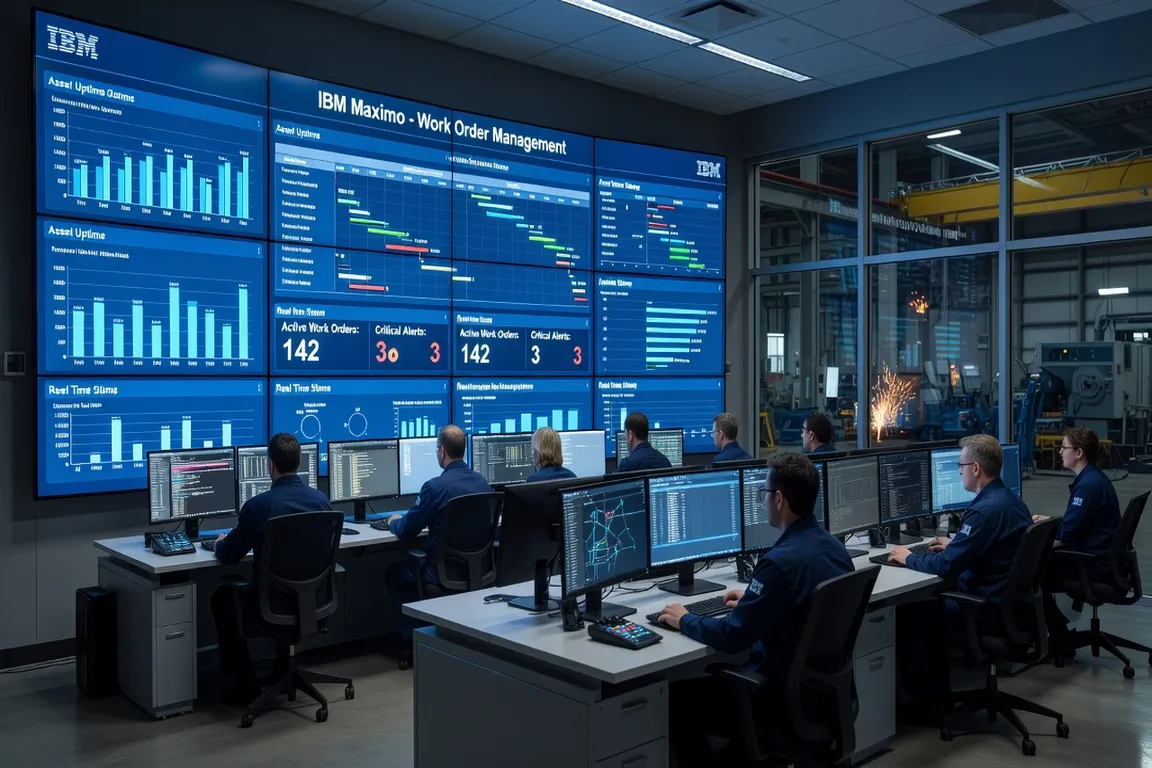
Work orders are the operational heartbeat of IBM Maximo. Every unplanned failure, every scheduled PM, every corrective task flows through the work order system. Yet many organizations use only a fraction of Maximo’s work order capabilities — relying on free-text descriptions, skipping actuals entry, or maintaining a backlog that grows faster than it shrinks.
This guide presents 15 concrete best practices drawn from enterprise Maximo deployments across manufacturing, utilities, and facility management. Whether you’re on Maximo 7.6 or transitioning to MAS, these practices apply across versions and help you get measurable results.
For a solid foundation on the core work order application, see the Maximo Work Orders Guide before diving into advanced practices.
1. Always Link Work Orders to an Asset or Location
This is the single most impactful practice. A work order without an asset or location link is an orphaned record — actuals won’t roll up to asset cost history, failure reports won’t populate, and your reliability analysis will have blind spots.
How to enforce it: Use a workflow that validates the ASSET or LOCATION field before the work order status advances to INPROG. If your organization allows location-level work orders (for common areas or unclassified zones), establish a naming convention for holding locations and retire them periodically.
Every work order should answer: “What physical asset or location did we work on?“
2. Standardize Work Order Classification with Work Types
Maximo’s WORKTYPE field (Corrective, Preventive, Emergency, Inspection, etc.) drives reporting, KPIs, and cost segregation. Without consistent work types, you can’t calculate your PM compliance rate or distinguish emergency spend from routine maintenance.
Best practice: Define your work type taxonomy in a governance document and enforce it through workflow or conditional UI rules. Limit work types to 5-7 categories — too many creates classification fatigue and inconsistent data.
3. Use Job Plans for Every Repetitive Task
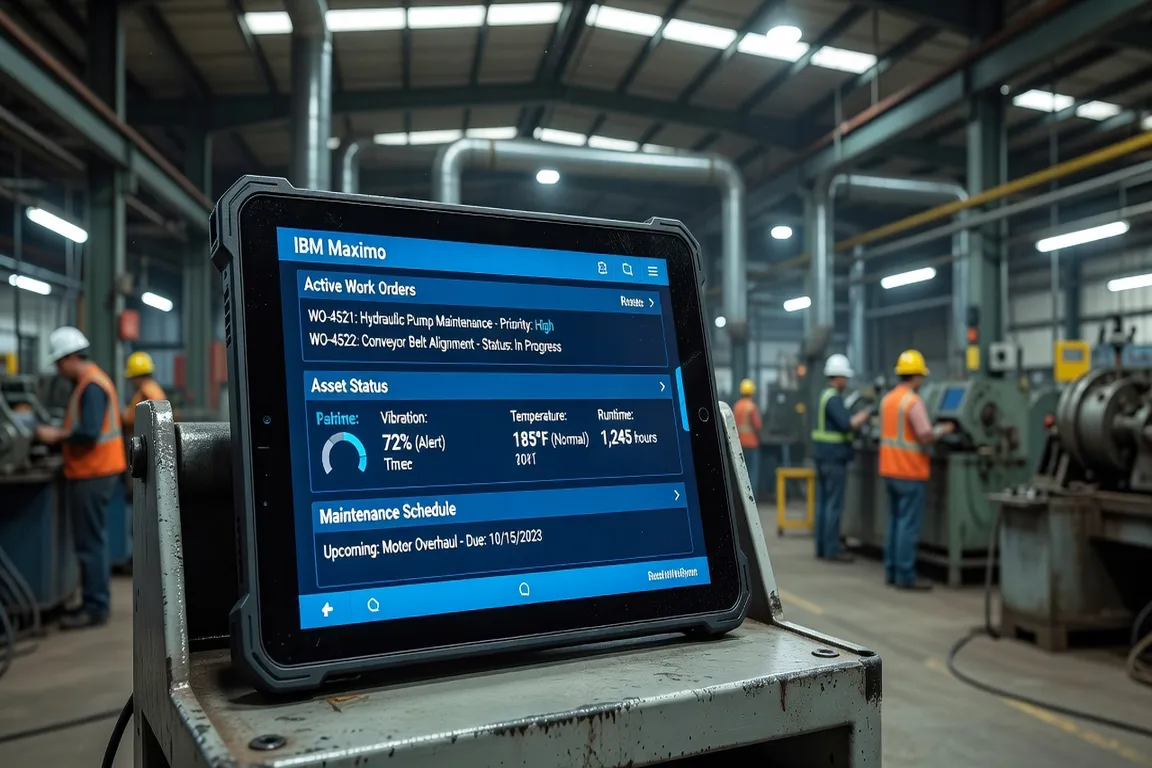
Job Plans are the mechanism for standardizing recurring work. A Job Plan defines the task list, estimated labor hours, required materials, tools, and safety procedures. When linked to a Preventive Maintenance (PM) record, the generated work order inherits all of this automatically.
How to use them: Create Job Plans for any task performed more than twice per year. Include:
- Step-by-step task descriptions
- Labor type and estimated hours per task
- Required materials with item numbers
- Safety hazards and PPE requirements
Organizations using Job Plans report 30-40% reduction in planning time for recurring work.
4. Enforce Failure Code Entry on Corrective Work Orders
Failure codes — Problem, Cause, and Remedy — are the foundation of reliability analysis in Maximo. Without them, you can’t identify recurring failures, can’t calculate MTBF, and can’t make the business case for equipment replacement.
Setup: Configure a workflow condition or application rule that requires Failure Code entry before a corrective work order can be closed. Train technicians on the failure code hierarchy — Problem describes the symptom, Cause identifies the root cause, and Remedy documents what was done.
Review failure code data quarterly to identify the top-5 failure modes per asset class. For deeper failure analysis linking, see Maximo Asset Management.
5. Set Priority Consistently Using a Decision Matrix
Work order priority (1=Emergency to 5=Routine, or your organization’s variant) must be assigned consistently across the team. When one planner treats everything as Priority 2 and another reserves Priority 1 for true emergencies, your resource scheduling becomes meaningless.
How to do it: Create a one-page decision matrix that maps equipment criticality × failure impact → priority level. Post it in planning areas and include it in new hire onboarding. Consider automating priority assignment in Maximo using classification-based rules.
6. Capture Actuals Before Closing
Actuals — labor hours, materials consumed, and tools used — are the financial record of the work performed. Many organizations collect actuals only sporadically, rendering their Maximo cost reports useless for budget planning.
Minimum standard: Require at minimum:
- Actual labor hours per technician
- Materials issued from storeroom (these often auto-populate if issues are done properly)
- Start and end date/time for work performed
If actuals collection is a barrier, implement Maximo Mobile (available in MAS) or a barcode scanning workflow that reduces data entry to under 2 minutes per work order.
7. Use Long Description Fields — Not Just Summary
The Work Order Description field is limited to 100 characters. This is not enough to describe complex maintenance tasks. The Long Description field (accessed via the detail icon) has no practical limit and supports formatted text.
Practice: Train planners to write the full task description in Long Description, including access requirements, special precautions, previous failure history, and any known parts availability issues. Use the Summary field as a headline only.
A well-documented work order reduces calls to planning by 40-60% on the shop floor.
8. Implement a Formal Work Order Approval Workflow
Without approval workflow, work orders can be created and executed without management visibility — leading to unplanned spend, duplicate efforts, and safety gaps. Maximo’s Workflow application supports multi-level approval routing based on work type, cost estimate, asset criticality, or organizational unit.
Configure Maximo Workflow Configuration for at minimum:
- Emergency work: auto-approved for immediate response, supervisor notified
- Corrective work >$X: requires planner review
- Major corrective >$Y: requires manager approval
Workflow also enables SLA tracking — escalations fire automatically if a high-priority work order sits unassigned beyond a threshold.
9. Schedule Work Orders with the Assignment Manager
The Assignment Manager application (or Scheduling in MAS) provides a Gantt-style interface for assigning work orders to labor resources. Using it consistently means schedulers can balance workload across crews, avoid resource conflicts, and plan for material availability.
Weekly scheduling ritual:
- Friday afternoon: Pull next week’s PM-generated work orders + top backlog items
- Review material availability for planned work
- Assign work orders to crew and shift
- Communicate schedule via Maximo notifications or crew board

10. Generate PM Work Orders on a Rolling Horizon
Preventive Maintenance records should generate work orders on a rolling 4-6 week horizon, not daily or ad hoc. Rolling generation gives planners time to prepare materials and schedule resources before the work comes due.
Configure PM Generation in Maximo’s Cron Tasks (PMWOGEN or equivalent) to run nightly and generate work orders for PMs due within the next N days. Review the PM Backlog report weekly to catch PMs that are approaching overdue status.
11. Link Purchase Requisitions to Work Orders for Traceability
When non-stock materials are needed for a work order, the requisition should be linked directly to the work order via the PR/WO relationship. This ensures:
- Cost rolls up to the work order and asset
- Procurement knows which work is waiting for parts
- Planners can track PO status without leaving Maximo
Configure the work order Materials tab to support direct PR creation. Train planners to avoid external purchasing processes that bypass Maximo — they create invisible costs.
12. Track Work Order Aging with a Backlog Dashboard
A growing backlog is the first sign of a capacity or prioritization problem. Without visibility, backlogs silently accumulate until they become crises. Build a Start Center dashboard or KPI report showing:
- Total open work orders by work type
- Average age of open work orders by priority
- PM compliance rate (% of PMs completed on time)
- Emergency work ratio (target: <10% of total)
Review this dashboard in weekly maintenance team meetings. For advanced reporting, see the Maximo Reporting Guide for BIRT report configuration and KPI setup.
13. Use Work Order Status Transitions Intentionally
Maximo’s work order status flow (WAPPR → APPR → INPROG → COMP → CLOSE) is not just a tracking tool — each transition can trigger workflow actions, notifications, and system integrations. Many organizations jump directly from APPR to CLOSE without using INPROG, losing visibility into work in progress and actual start/end times.
Status discipline:
- WAPPR: Work identified, awaiting planning/approval
- APPR: Planned, materials confirmed, ready to schedule
- INPROG: Work started — triggers actual start time
- COMP: Work done — technician closes, triggers QC or supervisor review
- CLOSE: Accounting closed — actuals frozen, cost rolled up
14. Implement Automatic Work Order Generation for Condition Monitoring
For organizations with vibration, temperature, or oil analysis programs, condition monitoring routes in Maximo can trigger work orders automatically when readings exceed set limits. This eliminates the manual step between a sensor alert and a corrective work order, reducing the time-to-response window.
Industries that use Industrie du Futur digital transformation strategies are increasingly pairing IoT sensor data with Maximo’s condition-based maintenance rules to shift from time-based PMs to condition-triggered corrective work — significantly reducing unnecessary preventive maintenance costs.
15. Conduct a Monthly Work Order Data Quality Audit
Data quality degrades over time. Assign a Maximo administrator or maintenance analyst to run a monthly data quality check covering:
- Work orders closed without failure codes (corrective only)
- Work orders without actuals labor hours
- Work orders with status APPR for more than 30 days (stale planning)
- Duplicate work orders on the same asset within 7 days
Create a Maximo report (BIRT or Query-based) that generates this list automatically. Distribute to planners and supervisors monthly with a target of less than 5% data quality exceptions.
Putting It All Together
These 15 practices aren’t a one-time project — they’re a continuous improvement discipline. Start with the highest-impact items for your organization: failure code compliance, actuals entry, and PM work order generation typically deliver the fastest ROI.
Track your progress using the backlog dashboard (Tip 12) and conduct a quarterly review of your data quality scores (Tip 15). As your team matures its Maximo usage, you’ll find that the data collected through disciplined work order management enables increasingly sophisticated reliability analysis, budget forecasting, and strategic asset decisions.